
Internet not working? Could your VPN be the cause?
Your computer says it is connected to Wi-Fi, but no web page will open anymore? Before replacing your router or calling your internet provider again, take a look at your VPN. It is a common cause, and often the last one people think of. We recently helped a customer whose internet access stayed blocked on a single computer: an outdated VPN was disrupting the whole connection. Here is how to recognise the problem and how to get rid of it properly.
Why a VPN can cut off the internet
A VPN (NordVPN, ExpressVPN, ProtonVPN, Surfshark, CyberGhost, Windscribe and the others) creates a virtual network adapter and sends all of the computer’s traffic through a tunnel. When the app is out of date, when Windows has moved to a new version, or when a previous uninstall left things behind, this tunnel can stay half open. The “kill switch”, which is meant to protect your connection, can then block all traffic instead of letting it through.
Warning signs to look out for
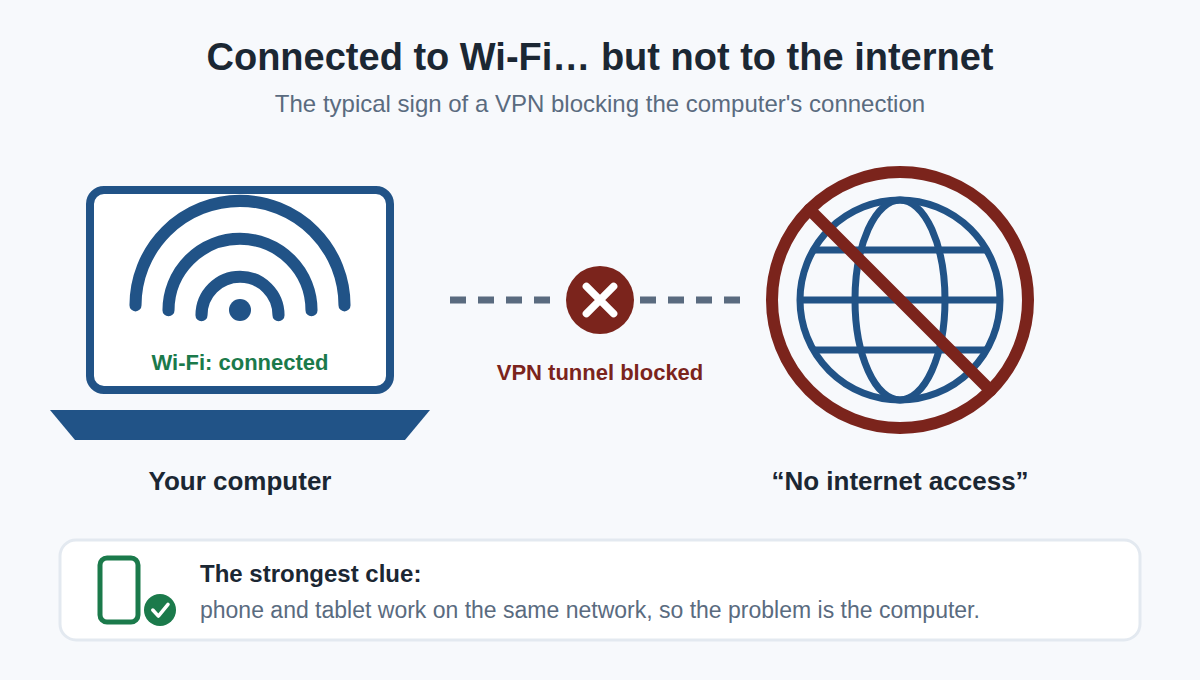
- Wi-Fi or cable connected, but Windows shows “No internet access” or pages will not load.
- The VPN stays on “Connecting” or keeps reconnecting in a loop.
- The internet comes back when you close the VPN completely, or never comes back at all.
- Some websites or apps work, others do not (messaging, online banking).
- Messages such as “DNS server isn’t responding” or
ERR_NAME_NOT_RESOLVED. - Extremely slow connection, for no apparent reason.
- The problem started after a Windows or VPN update.
- Other devices on the same network (phone, tablet) work normally: this is the strongest clue, the problem comes from the computer.
The quick test before uninstalling
- Quit the VPN completely: right-click its icon near the clock, then “Quit” (closing the window is not always enough).
- Turn off the “kill switch” option if the app still opens.
- Restart the computer.
If the internet comes back, the VPN is indeed the cause. If the problem persists, or comes back as soon as you start the VPN again, move on to a clean uninstall.
How to cleanly uninstall a VPN on Windows
This method works for NordVPN, ExpressVPN, ProtonVPN, Surfshark, CyberGhost, Windscribe and most others. Menu names vary slightly between Windows 10 and Windows 11.
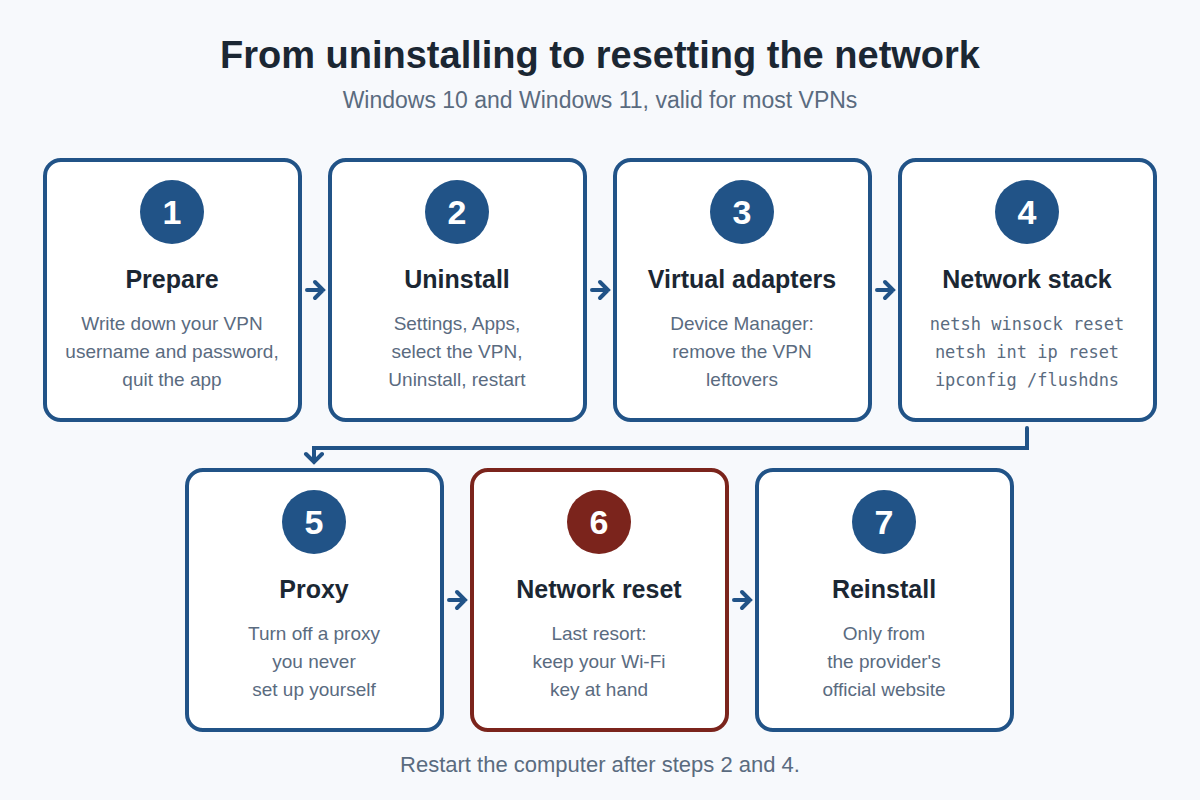
Step 1: prepare. Write down your VPN account username and password, so you can sign in again later. Quit the app.
Step 2: uninstall the app. Settings, then Apps (“Installed apps” in Windows 11, “Apps & features” in Windows 10). Select the VPN, then Uninstall. Restart.
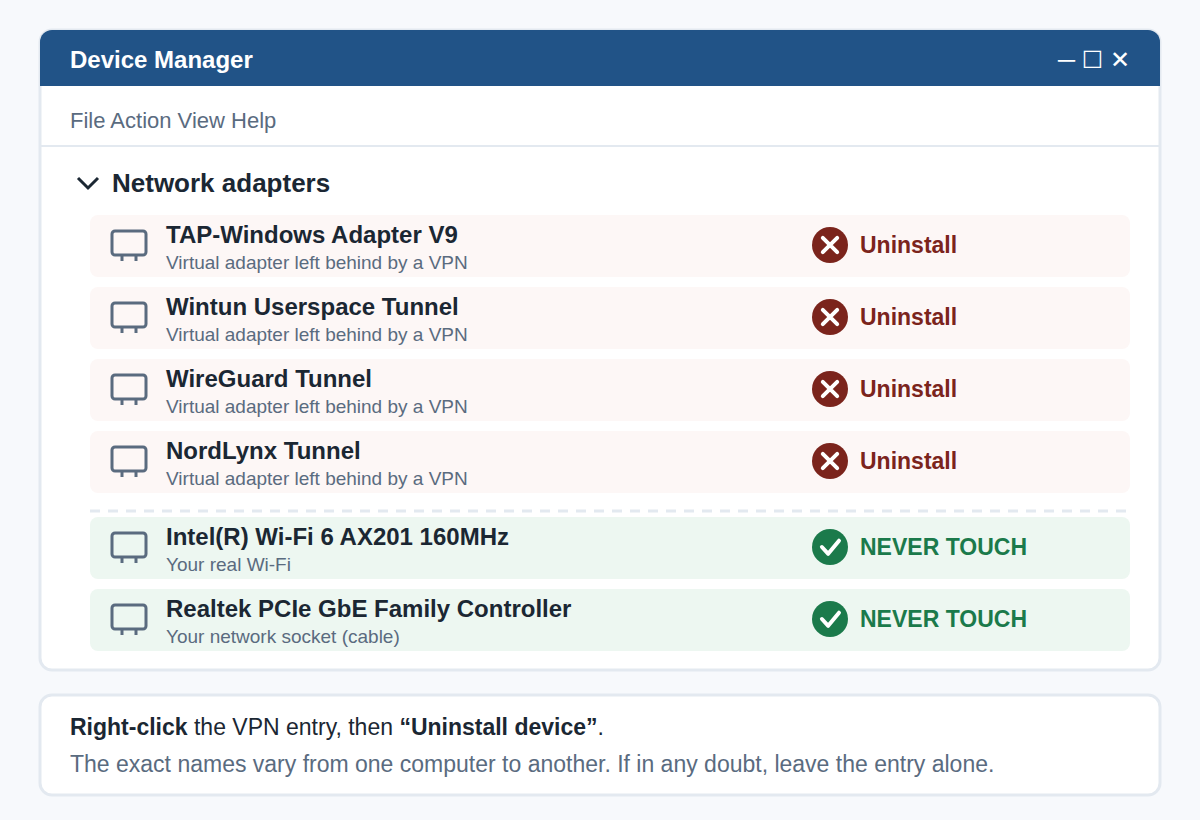
Step 3: remove the leftover virtual network adapters. Right-click the Start button, then Device Manager, then Network adapters. Look for the entries left by the VPN: TAP-Windows Adapter, Wintun, WireGuard, NordLynx, or an entry bearing the name of the service. Right-click, then “Uninstall device”. Never touch the adapter of your real Wi-Fi or of your cable connection (Intel, Realtek, Qualcomm, Broadcom, MediaTek…). If in any doubt, leave the entry alone.
Step 4: reset the network stack. Right-click Start, then “Terminal (Admin)” or “Windows PowerShell (Admin)”. Type these three commands, one at a time, pressing Enter after each one:
netsh winsock reset
netsh int ip reset
ipconfig /flushdns
Then restart the computer.
Step 5: check the proxy. Settings, Network & internet, Proxy. If “Use a proxy server” is turned on although you never set it up, turn it off.
Step 6 (last resort): network reset. Settings, Network & internet, Advanced network settings, Network reset (Windows 11), or Network & Internet, Status, Network reset (Windows 10). Warning: Windows then forgets all saved Wi-Fi networks, so keep your Wi-Fi key at hand.
Step 7: reinstall if you need it. Download the latest version only from the provider’s official website, never from a third-party site.
On Mac and on smartphones
- Mac: quit the VPN, drag the app to the Trash, then open System Settings, Network, and remove the VPN service still shown in the list.
- iPhone and Android: Settings, VPN (or Network & internet, VPN), then delete the VPN profile and uninstall the app.
Still not working?
A VPN is not always the only culprit: network driver, firewall rules, router DNS, leftovers from security software… If you have followed these steps without success, don’t waste your day. IAV provides remote and on-site support in Luxembourg, since 2008. Describe your problem using the contact form, and we will get back to you.
IAV S.à r.l. – depuis 2008 – iav.lu