
External hard drive not working: is it really dead?
Your external hard drive is not working: no light, no sound, or the computer simply no longer sees it? Before you write it off, know that in our workshop the culprit is very often the cable, the power supply or the enclosure, and in that case your files are still intact. Here is how to tell the difference, what you must never try, and why the cost of data recovery is only known after a diagnosis.
Before you do anything: if the files matter to you (photos, documents, accounts), do not keep retrying. A damaged drive can get a little worse every time it is powered on. Trying another cable, yes. Plugging it in again and again, no.
A “broken” drive: what are we really talking about?
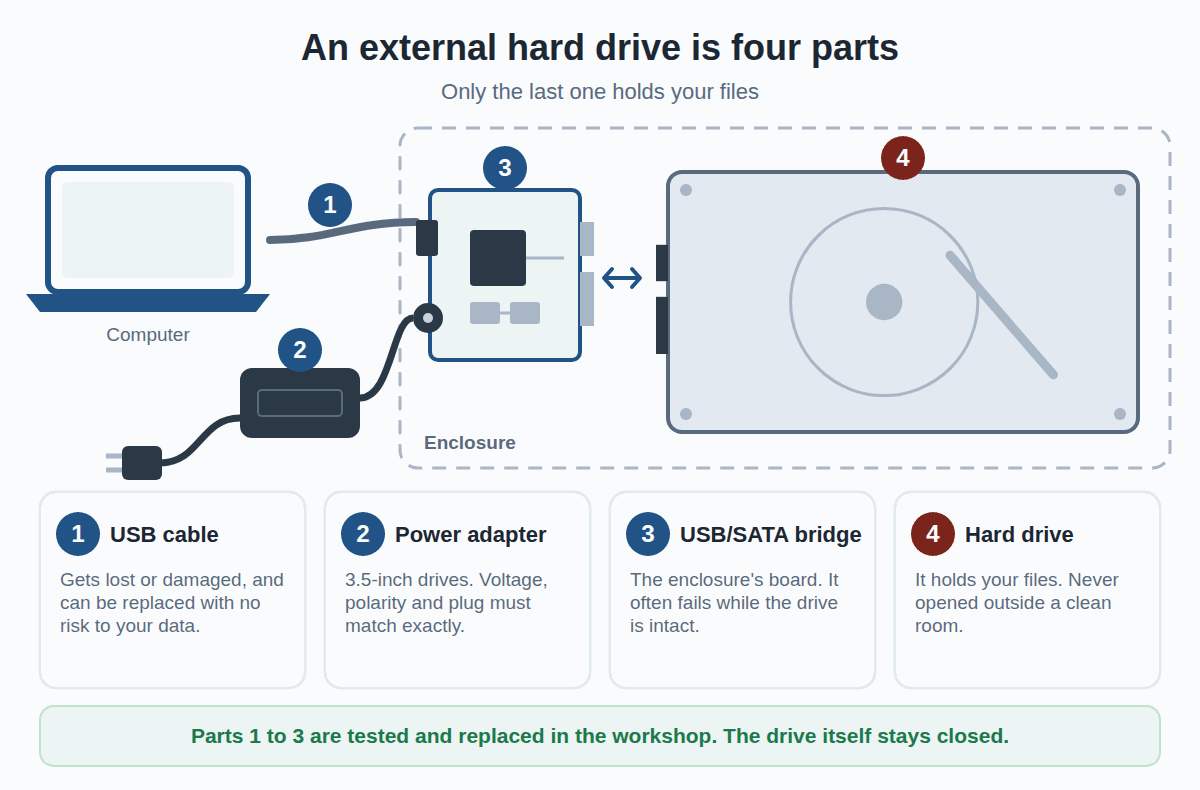
When an external hard drive is not working, the fault can be in four places. An external drive is not a single part: it is a cable, sometimes a power adapter, an enclosure with its small circuit board, and finally the drive itself. Only the drive holds your files.
1. The USB cable
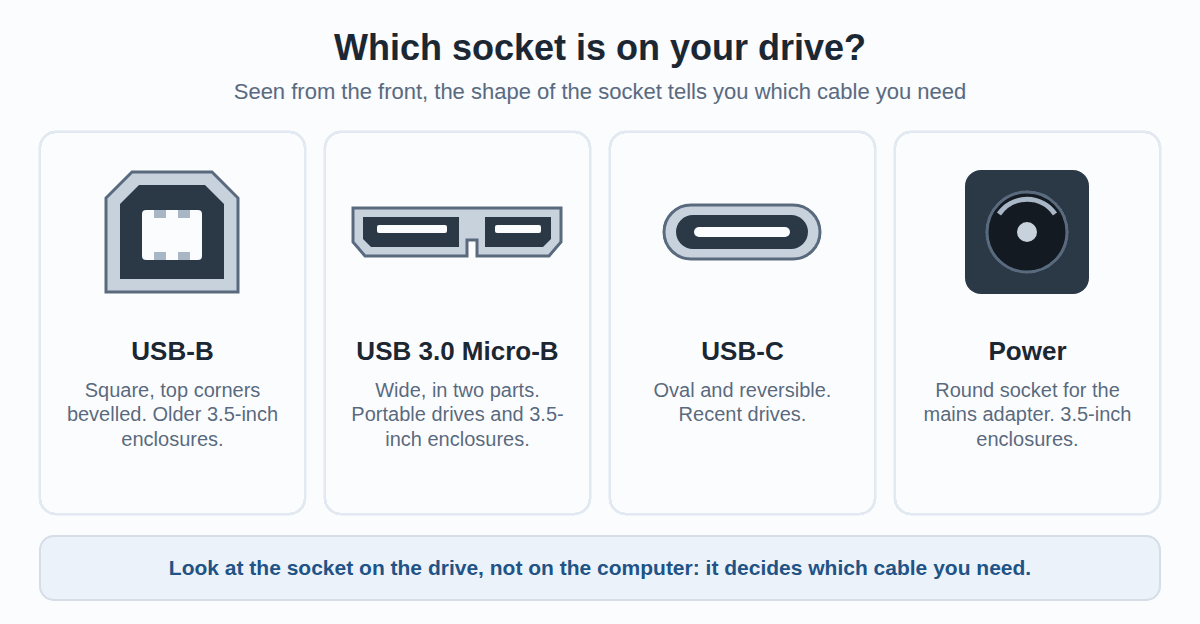
This is the part people lose most often, during a move or a clear-out. Large desktop drives (3.5-inch, with a mains adapter) often use a square USB-B cable or a USB 3.0 Micro-B cable, which is wide and comes in two parts. More recent drives use USB-C.
A cable can be replaced with no risk at all to your data. You still need the right one: go by the socket on the drive, not by whatever cable you have to hand. A USB 3.0 Micro-B cable or a USB-B cable is easy to find, and our guide to computer cables (in French) helps you recognise each socket.
2. The power supply
3.5-inch drives cannot run on USB power alone: they need their mains adapter. A lost adapter, a worn-out one or a plug that is not pushed all the way in, and the drive stays silent.
Be careful with a replacement adapter picked at random from a drawer. The voltage, the polarity and the shape of the plug are printed on the enclosure’s label: the new adapter must match all three. Too high a voltage can fry the enclosure’s electronics, and sometimes the drive’s as well.
Portable drives (2.5-inch) have no adapter: they draw all their power from the USB port. Plugged into an unpowered hub or at the end of an extension cable, some do not get enough and start clicking, even though the drive itself is fine.
3. The enclosure electronics
Inside the enclosure, a small board connects the USB socket to the drive. It is called the USB-to-SATA bridge. It is a fragile part that often fails while the drive inside is in perfect condition.
With a 3.5-inch enclosure, the drive can be taken out and connected directly to a desktop computer or to a hard drive docking station. If only the enclosure is at fault, a new 3.5-inch external enclosure is often all it takes to get your files back.
Two exceptions are worth knowing. On many portable drives, the USB socket is soldered onto the drive’s own circuit board: there is no separate enclosure to replace. And some enclosures encrypt the data: taken out of its enclosure, the drive looks empty or asks to be initialised. In that case, above all, do not accept anything.
4. The drive itself
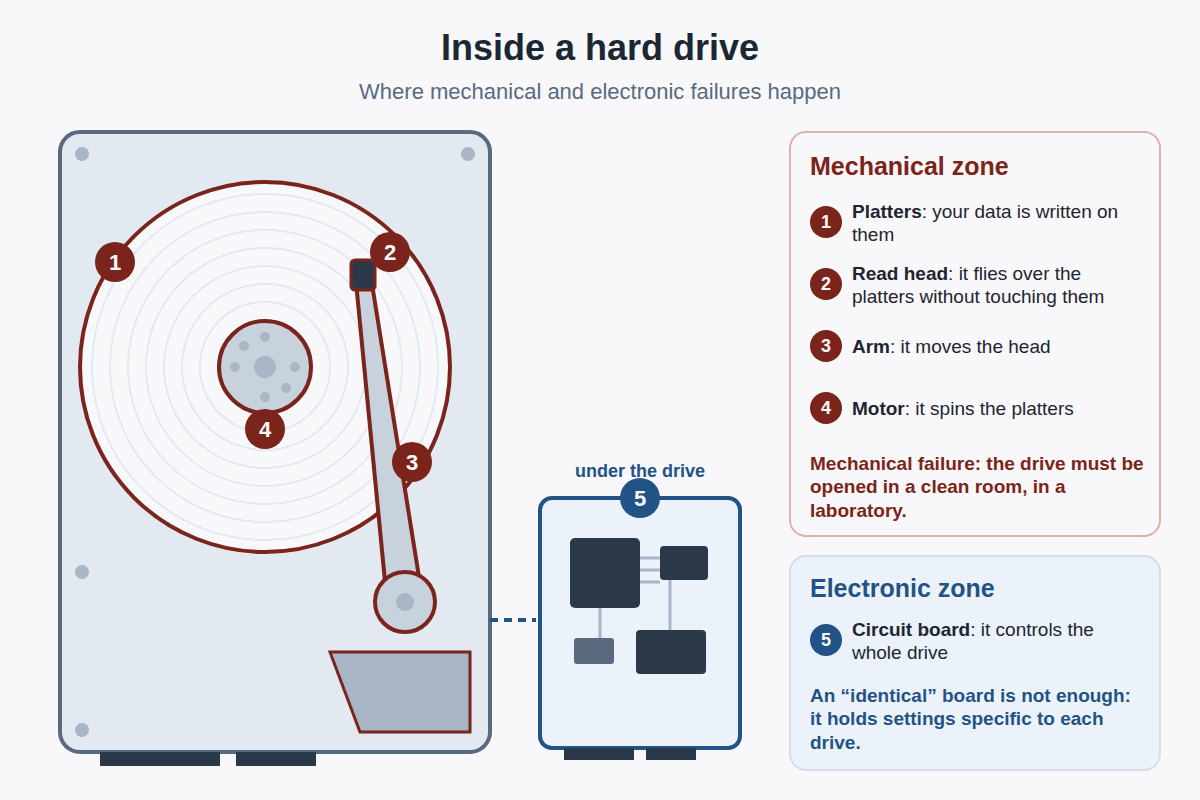
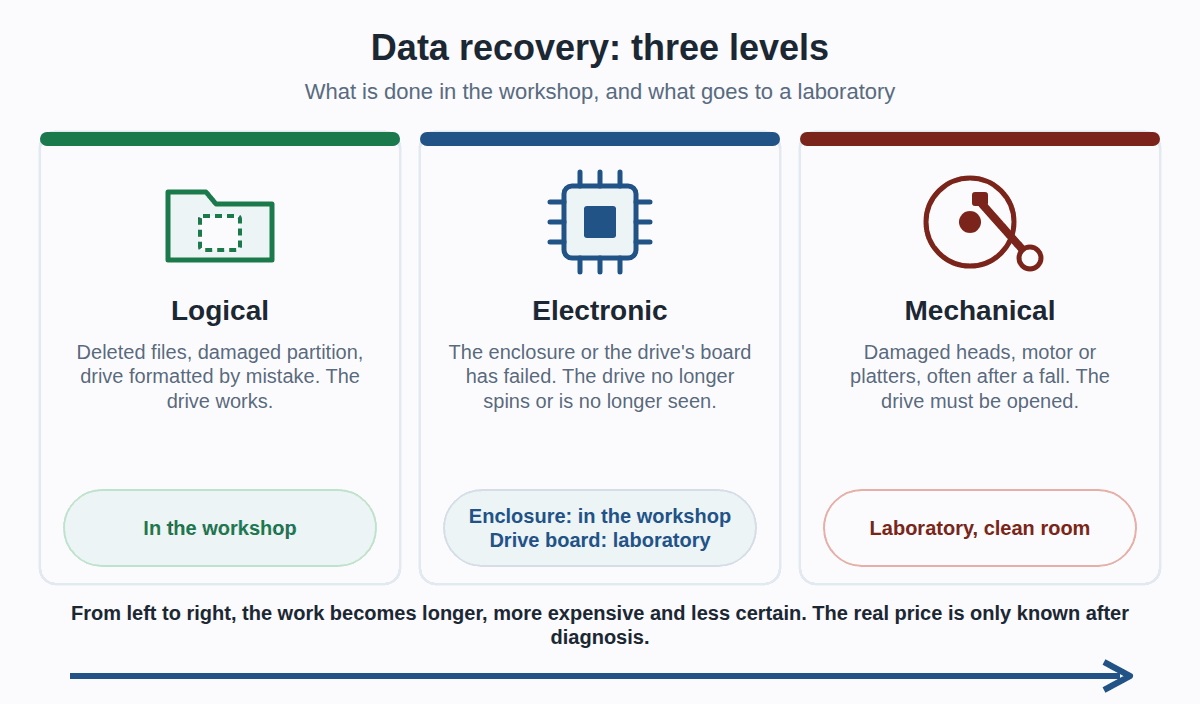
This is where the real trouble starts. There are three kinds of failure:
- Logical failure: the drive works, but files have been deleted, the partition is damaged or the drive was formatted by mistake. The data is often still there, as long as nothing is written over it.
- Electronic failure: the circuit board fitted under the drive has burnt out, after a power surge or the wrong power adapter. The drive no longer spins at all.
- Mechanical failure: damaged read heads, motor or platters, often after a fall or through wear. This is the most serious: every power-on can scratch the platters a little more.
External hard drive not showing up, clicking or beeping: what the symptoms mean
The noise and behaviour of the drive say a lot. This table gives the most likely causes, not a diagnosis: two different faults can look alike.
| Symptom | Likely cause | Risk if you keep trying |
|---|---|---|
| Total silence: no light, no vibration | Cable, power adapter or enclosure; more rarely, the drive’s circuit board | Low, as long as you do not tinker with the power supply |
| Regular clicking (“click, click, click”), the drive stops and starts again | Damaged read heads or platters; sometimes just a lack of power on a portable drive | High: unplug it after the first try |
| Beeping, buzzing or scraping | Seized motor, heads stuck to the platters or heads scraping | Very high: unplug it immediately |
| It spins normally, but the computer does not see it | Cable, USB port, enclosure, or more rarely the drive itself | Low to medium |
| It appears, but Windows asks to format or initialise it | Damaged partition or file system, or an enclosure that encrypted the data | High if you accept: always refuse |
| It works, but everything is very slow or freezes | Unreadable areas on the platters, drive at the end of its life | High: copy the essentials once, without running anything else |
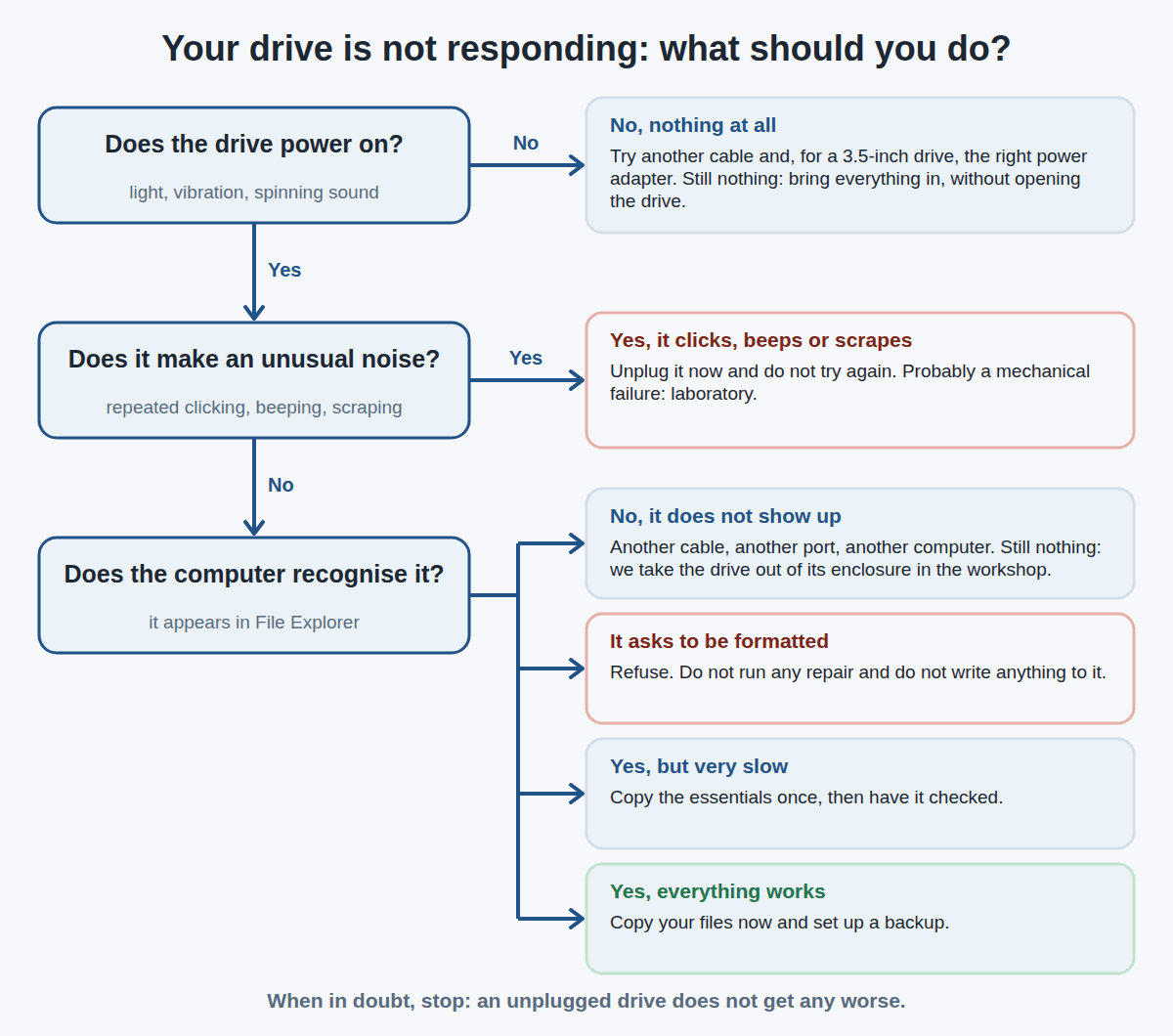
To know what to do in your case, follow the tree below. It deliberately stops early: as soon as a sign of mechanical failure appears, the right move is to unplug.
Dropped your hard drive? Only a test will tell
Honestly, it is 50/50. Some dropped drives carry on as if nothing had happened, others are lost at the first knock. You only find out by trying, once, carefully.
One question changes everything: was the drive running when it fell? While it runs, the read heads fly just above the spinning platters, and a knock can make them touch. When it is off, the heads are parked to the side and the drive copes much better. A portable drive that falls off the desk because someone pulled the cable during a copy is, unfortunately, the worst case.
After a fall, one try only. If it clicks, scrapes or beeps, unplug it at once and do not try again: from then on, every attempt damages the platters a little more.
The most common case in our workshop: nothing was wrong with the drive
We see it often. Someone brings us a “dead” external drive: it no longer powers on, or the computer no longer sees it. Quite often, the original cable is simply missing, or the enclosure has failed.
Our method is always the same. First we test with a cable and a power supply that we know work. If nothing changes, we open the enclosure (never the drive), take the drive out and connect it directly. Often, all the files reappear. We then copy them to a healthy drive, and only afterwards do we ask whether the drive can be used again.
What you must never do
There are plenty of tips online. Most of them reduce your chances of getting your files back.
- Opening the drive itself. Inside, the heads fly over the platters closer than the size of a speck of dust. Opened outside a clean room, the drive may never be readable again. The enclosure can be opened, the drive never.
- Shaking or tapping it to “unstick” something. The heads and platters do not survive it.
- Putting it in the freezer. It is an old myth: the moisture that later condenses inside does more damage than the original fault.
- Plugging it in again and again while it clicks. Every attempt can scratch the platters a little more, right where your data is.
- Running repair or recovery software on a drive that makes noise or is very slow. A disk repair, like the one Windows offers, writes to the drive and keeps it working for hours.
- Accepting “Format” or “Initialise” when Windows suggests it. It wipes what is needed to find the files and makes everything else harder.
- Saving anything to the drive that held the deleted files: each new file can overwrite what you are trying to recover.
- Plugging in a random power adapter. The wrong voltage or polarity can destroy the electronics.
- Replacing the circuit board with an “identical” second-hand board. On recent drives, each board holds settings specific to its own drive.
Data recovery: why the price cannot be predicted
Recovering data is not like replacing a part with a known price. Everything depends on the state of the drive and on what you are looking for, and that only becomes clear once the work has started.
What we do in our workshop
- the diagnosis, including testing the cable, the power supply and the enclosure;
- connecting the drive directly, out of its enclosure;
- copying a healthy or fragile drive to a new one, as gently as possible;
- recovering deleted files or a damaged partition.
We do not have a clean room: in our workshop, the drive itself is never opened.
When a laboratory is needed
A mechanical failure (heads, motor, platters) means the drive must be opened in a clean room. This work is entrusted to a specialist laboratory. Costs can then become very high, with no guarantee of success: if the platters are scratched, part of the data may be lost for good. A burnt-out drive circuit board also has to go to a specialist.
An example: a wedding video
A customer brought us a camcorder from 2007, one of those that recorded onto a built-in hard drive. The drive was still working. But he had accidentally deleted the video of his daughter’s wedding.
The video was recovered. The work, however, went far beyond what was planned at the start, and we adjusted the price for this customer. The lesson is simple: even a drive in good condition can require a lot of work, and the real cost is only known after the diagnosis.
The diagnosis itself has a fixed price, shown on our prices page, and it is deducted from the invoice if the recovery succeeds. For larger jobs, you receive a written quote before any work starts, and nothing is done without your agreement.
The real solution: backups
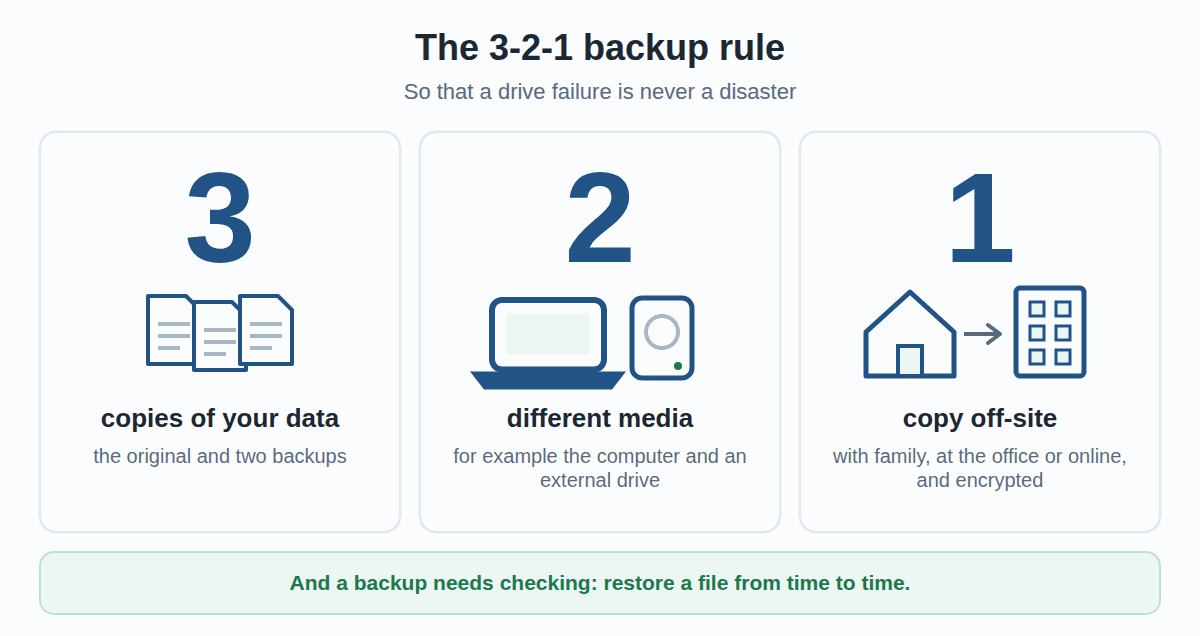
Every hard drive fails sooner or later; the only question is when. The only real protection is to have your files in several places before the failure. With an up-to-date backup, a dead drive becomes a simple purchase, not a disaster.
The safest method fits in three numbers: the 3-2-1 rule. We explain it, along with the discipline that goes with it, in our article Backing up your data: the 3-2-1 rule and the discipline that goes with it. And if you are torn between a classic hard drive and an SSD for what comes next, read our SSD vs HDD comparison (in French).
External hard drive not working? Bring it in as it is
The best reflex is often to do nothing more. Bring the drive with everything you have: the enclosure, the cable, the power adapter, including the part you suspect, because it helps with the diagnosis. Also note what happened (a fall, a noise, a Windows message): it is valuable.
IAV has been fixing computers in Luxembourg since 2008. Describe the situation through our contact form, and we will get back to you.
Information and liability
This article describes common situations we see in our workshop. Every drive is different: the same symptom can have several causes, and only a diagnosis can tell them apart.
Despite the care taken in writing it, errors or inaccuracies may remain. If in doubt, and especially if your data matters, call on a professional before doing anything.
IAV S.à r.l. accepts no liability for data loss or damage resulting from actions taken solely on the basis of the information in this article.
IAV S.à r.l. - depuis 2008 - iav.lu
As an Amazon Associate, we earn from qualifying purchases.