
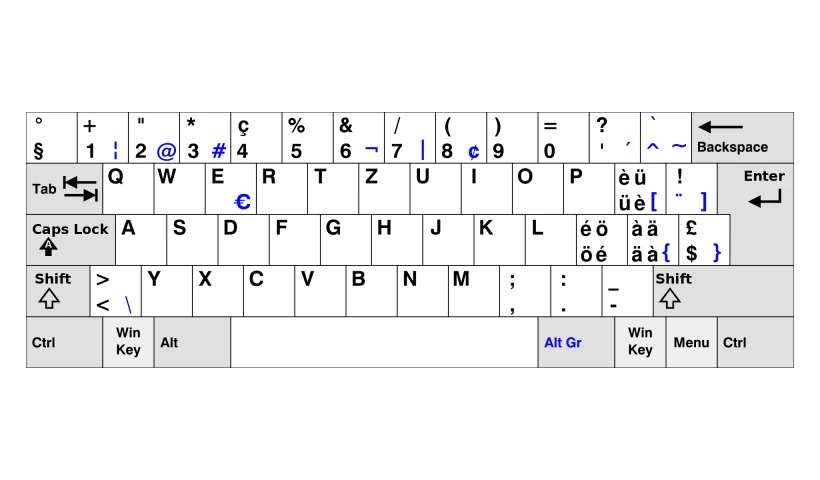
Keyboard settings in Windows

Keyboard settings in Windows
To change the keyboard layout you use in Windows 10 or 11, press and hold the Windows key and press the Space bar repeatedly to cycle through all your installed keyboards.
If nothing changes, it means you have only one installed. Read on to add another keyboard.

If you have only one keyboard installed and it is not the right one, here is how to install another keyboard.
Adding a keyboard in Windows 11 or 10
Adding an input language lets you set a preferred order of languages for websites and apps, and change your keyboard language.
- Select the Start button, then select Settings > Time & language > Language (on Windows 11: Language & region).
- Under Preferred languages, select the language that contains the keyboard you want, then select Options. If you do not know which keyboard you have, we have listed the keyboards most commonly used in Luxembourg further down in this article.
- Select Add a keyboard, then choose the keyboard you want to add. If the keyboard you want does not appear, you may need to add a new language to get more options. If so, go on to step 4.
- Go back to the Language settings page, then select Add a language.
- Choose the language you want to use from the list, then select Next.
- Review the language features you want to set up or install, then select Install.
Final steps to set up your keyboard

At the top right, click on “Administrative language settings”

In the “Administrative” tab, click the “Copy settings…” button

Tick the “Welcome screen and system accounts” and “New user accounts” boxes
Confirm this new configuration by clicking the “OK” button, then “OK” again, and finally close the “Settings, Language” window
This last procedure copies the keyboard settings to the rest of the system. It also means you will have the right keyboard when you sign in. This means you must be sure that you typed your sign-in password after setting up the right keyboard.
Otherwise, if you typed your password with the wrong keyboard, Windows may reject it as incorrect.


Need a new keyboard?
We always recommend Swiss French or Swiss German keyboards to our customers. These keyboards have all the keys needed for French, German, English, Portuguese and other languages commonly used in Europe. The various accents are also available, so you can type the accented letters of other countries. We consider this keyboard the Swiss army knife of keyboards.
Different types of keyboards used in Luxembourg

QWERTZ, KeyBoard Layout, Swiss/French, Swiss/German 
QWERTZ, KeyBoard Layout QWERTZ German 
QWERTY, KeyBoard Layout USA 
AZERTY, KeyBoard Layout AZERTY Belgian 
AZERTY, KeyBoard Layout AZERTY French
Keyboard still playing up?
Password rejected at sign-in, keys that no longer respond or a temperamental wireless keyboard: IAV sorts out the problem remotely or on site in Luxembourg as part of its IT repair service. Tell us what is happening using the contact form.
To save time every day, also discover QuickLook, which previews a file at the touch of a single key.
IAV S.à r.l. - depuis 2008 - iav.lu
our sources:
https://en.wikipedia.org/wiki/Keyboard_layout
https://support.microsoft.com/en-us/windows/manage-the-input-and-display-language-settings-in-windows…
Some links in this article are Amazon affiliate links: a purchase made through these links earns me a small commission, at no extra cost to you. As an Amazon Associate, I earn from qualifying purchases.